
Jump To:
General Notes
Date Fields
When manually entering any date for an import, it must be in one of the following formats (For CSV files):
- YYYY-MM-DD
- MM-DD-YYYY
- 2023-03-02T00:00:00Z (for database exported data)
When a file is saved/imported as an Excel file, the format is not important.
1. Use the standard field Address (
address_string ) only when the full address is available. - This field should contain the complete address (street, city, state, postal code) in the same cell.
- street (
street_address) - city (
city) - state (
state) - Postal Code (
postal_code)
3. If only latitude and longitude are available, there is no need to populate other address fields.
4. Address takes priority over latitude/longitude.
Import 'Related To' Fields
Enter the name of the related to record exactly.
For example, for Related To Company/Contact fields, enter the name of the company EXACTLY.
For Company/Contact fields - Any differences in the name will not be recognized as an existing record and a duplicate will be created upon import.
For Other Object fields - Any differences will not be recognized and the import will fail. The import errors will read:
"Error processing a [Import Object]:'Linked Project' not found
"Error processing a [Import Object]:'Linked Property' not found
"Error processing a [Import Object]: 'Linked CO' not found
Import a Record's Layout Field
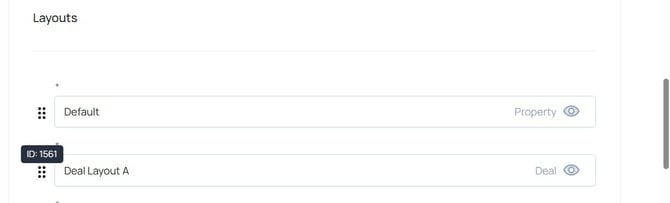
Enter the Layout ID instead of the Layout Name.
Find the Layout ID by navigating to Settings > Dropdowns > Layouts
Hover over the reorder icon to reveal the ID
Imports to Update Existing Data
TermSheet allows for bulk updates to existing data through import. The TermSheet ID is the unique identifier that is mapped from the import to the existing record to ensure the changes are applied to the correct existing records.
To view any record's ID field, enable it in a report (via Report Builder) 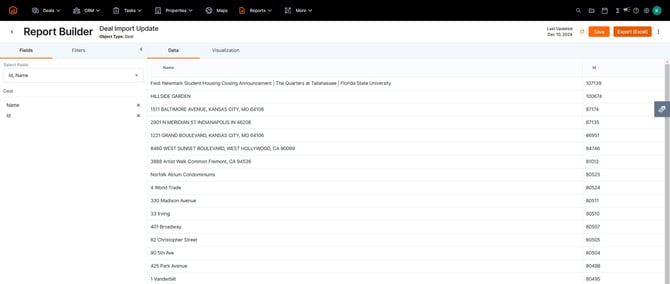
or in any View (in the object/module itself) then export the records. 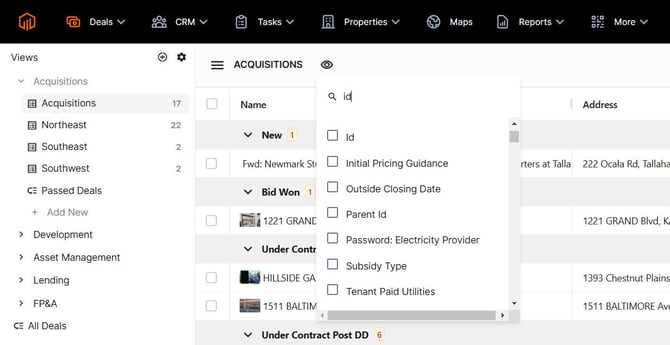
Non Importable Fields
Some fields are not able to be added/updated via import template. These include calculated fields and fields that have been hidden in the platform. To double check if a field is importable or not, visit Fields in Settings to review the Importable column. 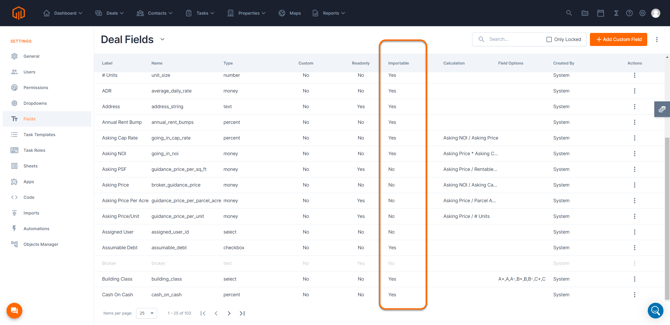
Import Status
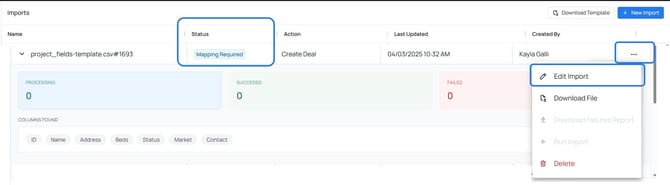
Mapping Required
Field mapping is not complete. Select Import Options to edit the import and map fields.
In Queue
Imports may show a status of "In Queue". This happens when there is a unusually high load of requests. Users can navigate away from the page and return when the import is ready to run.
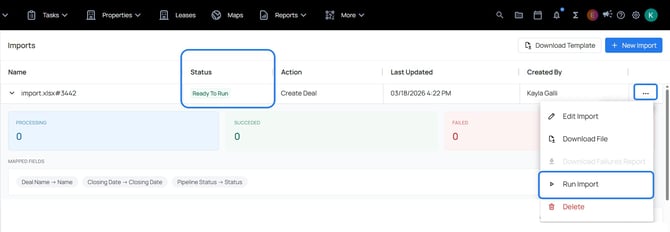
Ready To Run
Import has not been started but is ready to be started. Select Import Options to Run the Import.
Running
Import is In Progress. User can navigate away from the imports page and the import will run in the background. 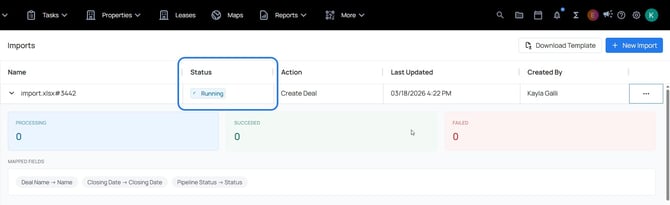
Imported
Import completed successfully, without errors.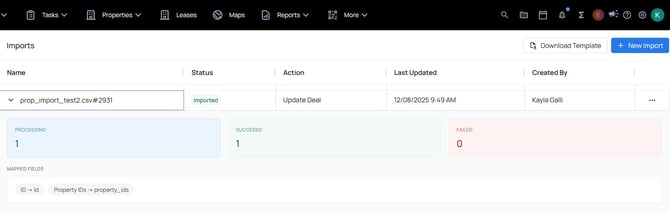
Imported With Failures
Import has not completed or has partially completed with errors. Download failures report to view import errors on a csv. Correct the issues listed in the Imports Errors column and reimport. 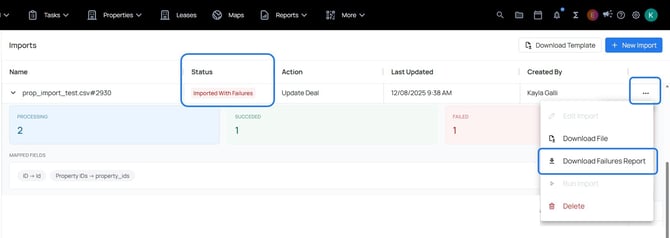
Deal Imports
Required Fields:
- Name
To import deals that connect existing properties to the deals, use the Property IDs and add those to the deal import.
When adding data to the workspace for the first time (new deal data) perform the Deal Import first, here you can include contacts, companies, properties, and other 'related-to' fields. Contacts, companies, and properties included in the deal import will be created in the system automatically (eliminating the need to do separate contact, company, property imports and then link the records together.)
Contact Imports
Required Fields: (at least one of any of the following)
- Phone
- Mobile
- First Name & Last Name (both columns must be included)
Company Imports
Required Fields:
- Name
Property Imports
Required Fields: (at least one of the following)
- Name
- Address
Custom Object Imports
Required Fields:
- Name