💡Things to Consider
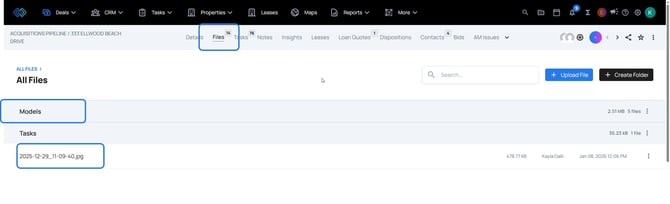
Document Management occurs in the Files tab of any Object Record.
Folders are grouped at the top in the grey bars.
Files are below the folders in white bars.
⚙️Steps
- Navigate to the Files tab in any object record.
- Select Upload File
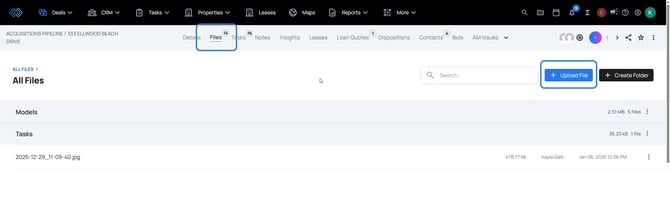
- Select a file from the document browser.
- Select Open and the document will be uploaded to the Files tab.
- Anytime a document is uploaded with a new file name, a new document within the workspace Files tab.
- Anytime a file is saved with the same file name, a new version will be tracked in the workspace.
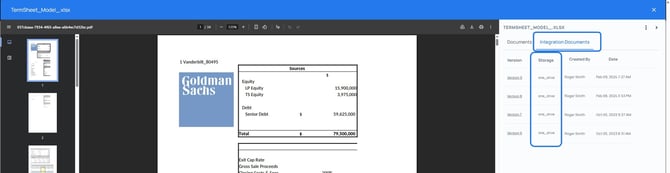
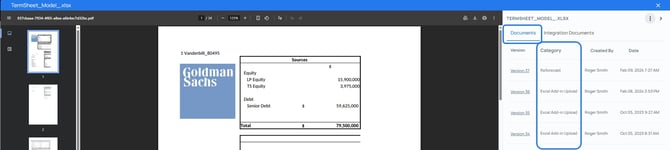
Within a document preview, document versions will be displayed in two tabs: Documents and Integration Documents.
Documents Tab
Documents will display a version number, a category, a created by user name, and a creation date.
Version Number: Assigns a unique sequential number to each new version.
Category: Indicates how this new version was created, either through a reforecast or by publishing from the Excel Add-In.
Created By: Shows which user generated the version, either via the Excel Add-In or through a reforecast.
Date: Displays the date on which the version was created.
Integration Documents
The Integration Documents tab will track system saves through document management integrations.
Version Number: Assigns a unique sequential number to each new version.
Storage: Identifies the integration source that generated the version.
Created By: Shows which user generated the version, either via the Excel Add-In or through a reforecast.
Date: Displays the date on which the version was created.