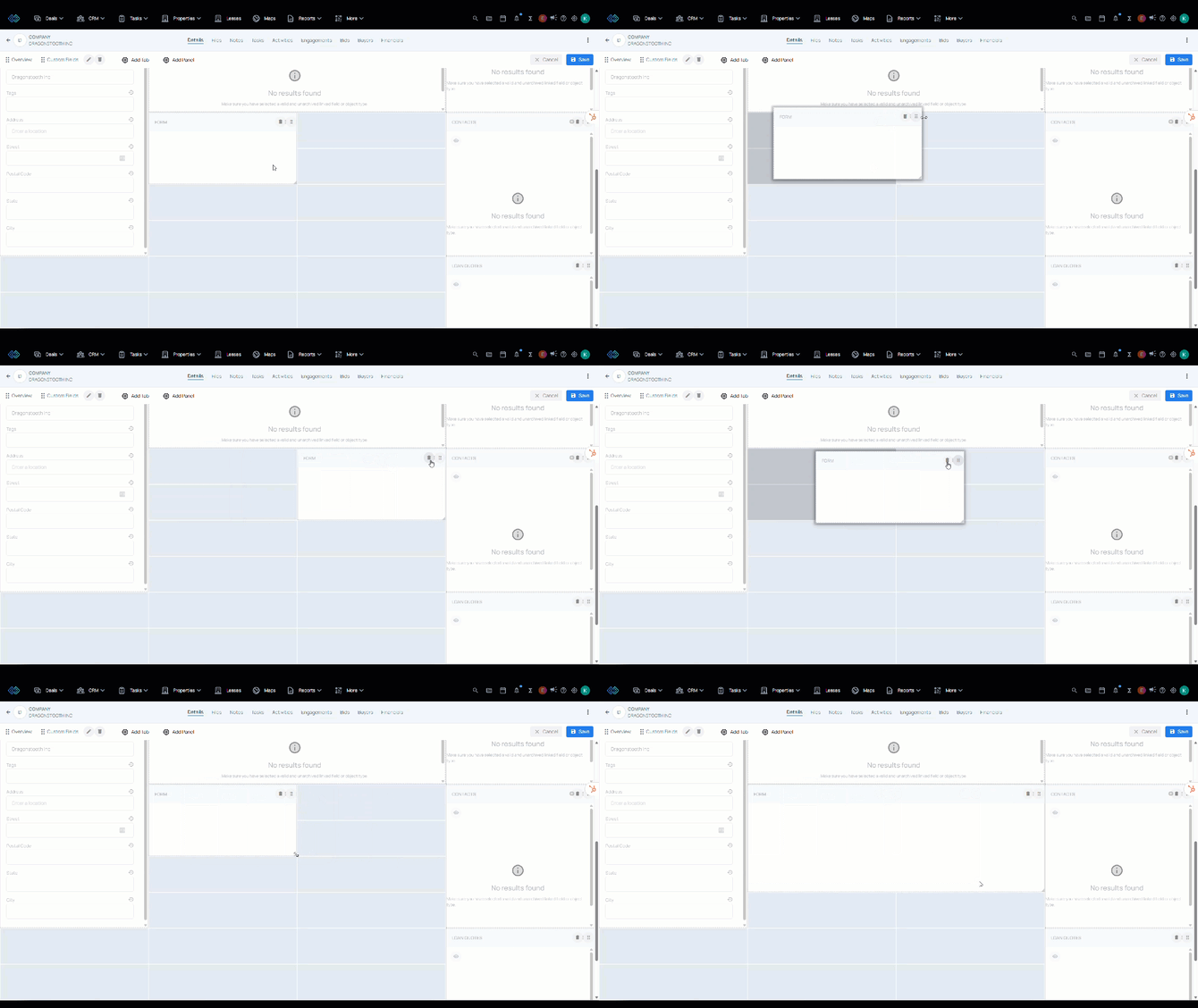
Configure the way that panels and fields are arranged on the contact and company records.
💡Things to Consider
New CRM Layouts allow for multiple layouts to be configured for contact or company records. Layouts cannot be applied or changed in bulk.
⚙️Steps
-
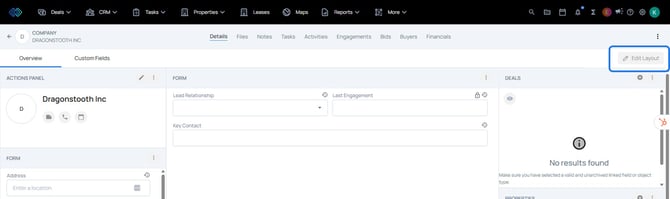
Select Edit Layout
- Select Add Panel or Add Tab to add an new CRM tab to accommodate additional panels as needed.
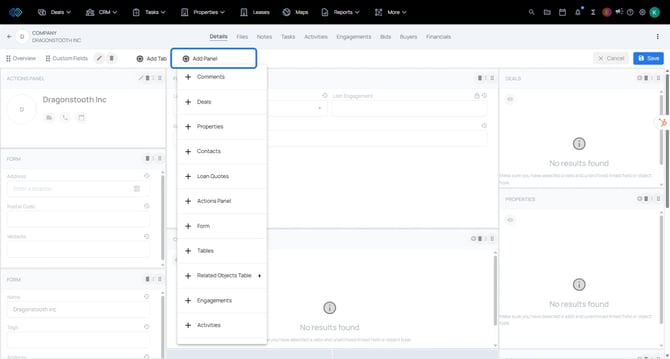
Panel Type Descriptions:
Comments - A feed of internal comments. @mention users
Deals - This panel will auto populate a list of deals where this company/contact has been added via a "Related To" field.
Properties - This panel will auto populate a list of properties where this company/contact has been added via a "Related To" field.
Contacts - (Company Only) This panel will auto populate a list of contacts that are associated to this company via the "Company" field.
Loan Quotes- This panel will auto populate a list of loan quotes where this company/contact has been added via a "Related To" field.
Actions Panel -Standard panel which contains the company/contact name and actions buttons to add a note, log a call, or log a meeting.
Form- Panel to add fields
Tables- Enter fields into cells on a table
Related Objects Tables- Add a table that will display records related to the Company/Contact via Relationship / Custom Object.
Engagements- View a list of logged calls, logged emails, logged meetings.
Activities- View a list of change history from the record. - Drag and drop to move the panel to the desired location. Drag the lower right corner to resize.