The TermSheet Report Builder aggregates data from various workspace modules, enabling teams to create tailored reports and visualizations to meet their specific needs.
📑 Learn to:
💡 Things to Consider
Report are not prohibited from having the same name. Take care to create descriptive report names that make it easy to differentiate them in a list view.
⚙️ Steps
Add a New Report
-
Select Reports from the company level tools.
-
Select "+ New Report"

-
Use the dropdown to select an Object from the dropdown.
-
Name the new report. Select "Create" to begin building the report.
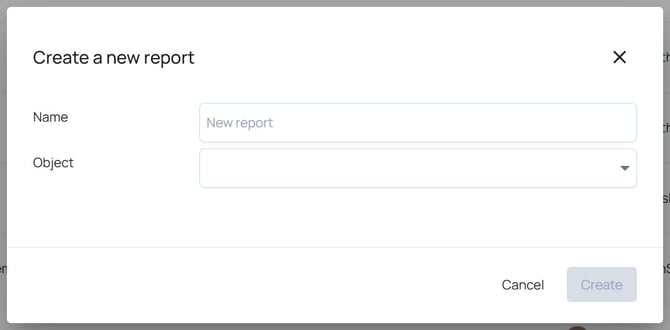
-
The Report Builder window is located on the left side of the screen and can be collapsed or expanded using the arrow in the header.
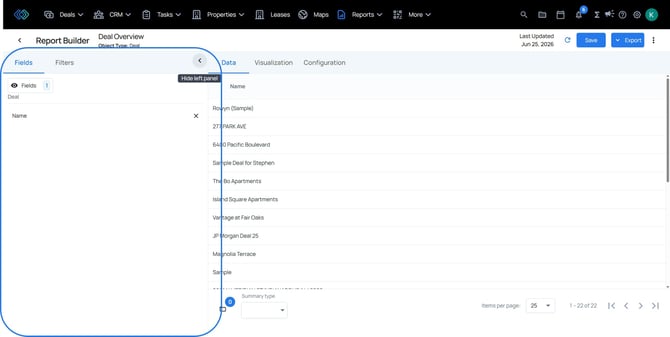
-
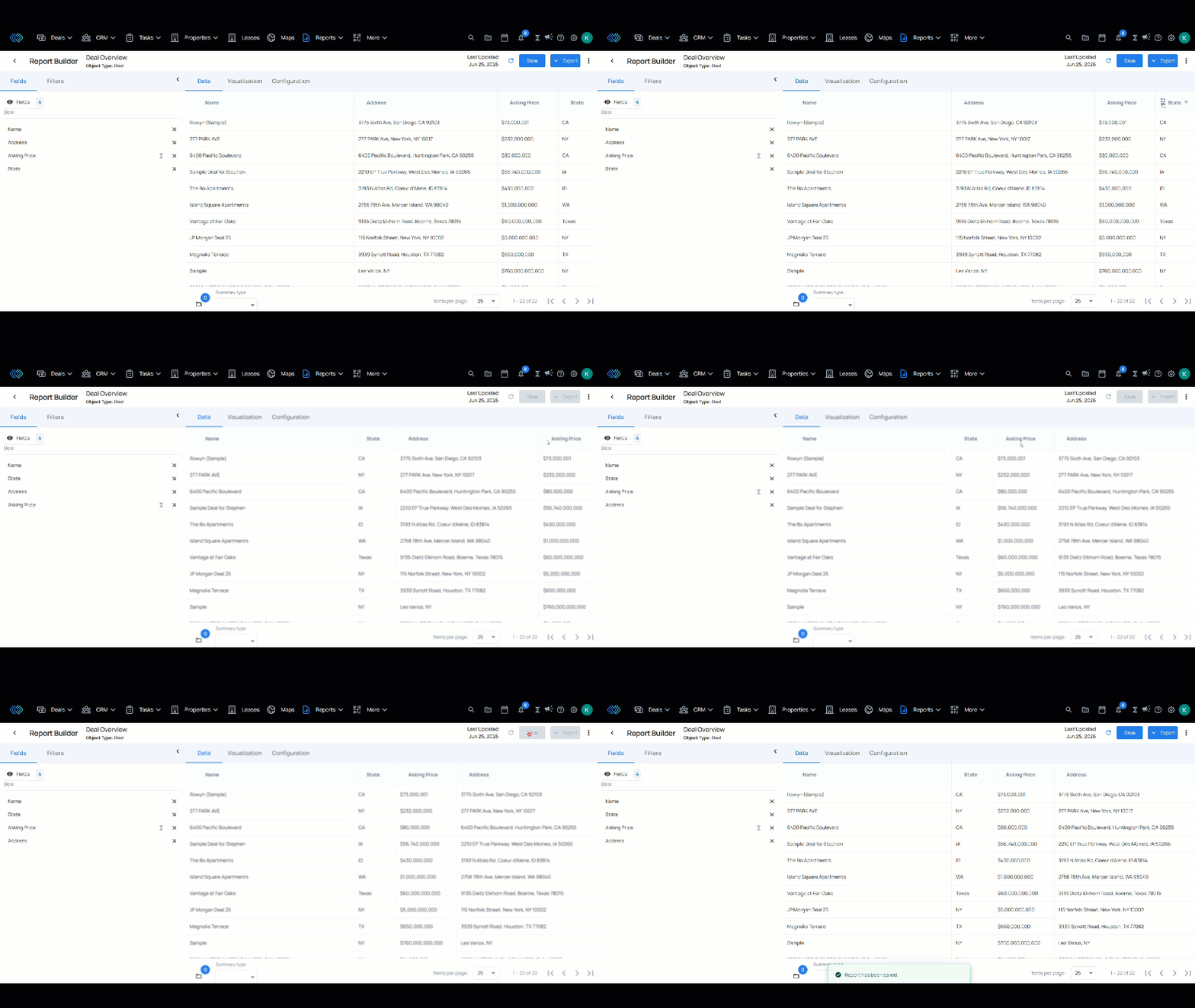
Start on the "Fields" tab within the Report Builder. Use the dropdown to select fields to add as columns on the report data table. As selections are made, the field name will appear in a list below the field dropdown and data will begin to populate in the Data tab in the center.
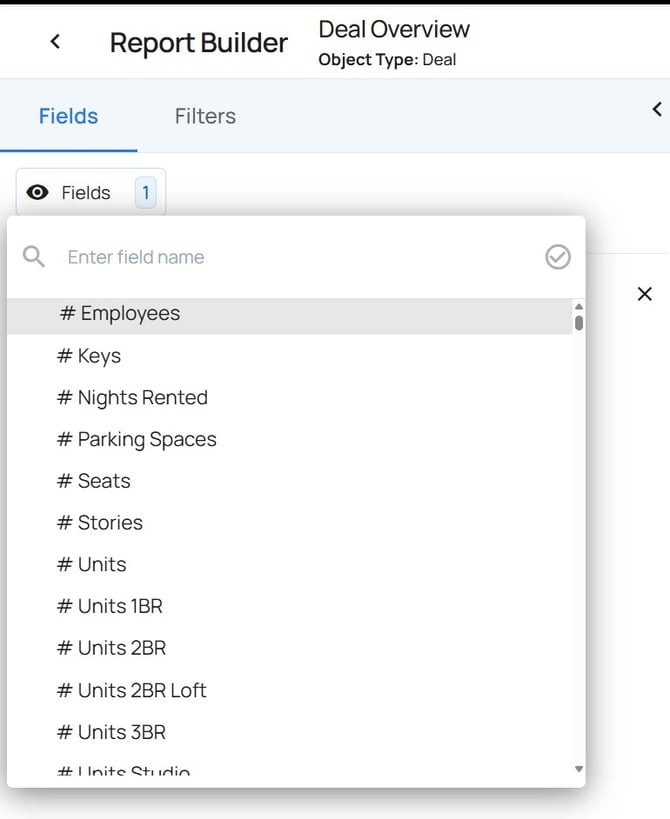
-
Drag and drop the columns on the table to reorder.
-
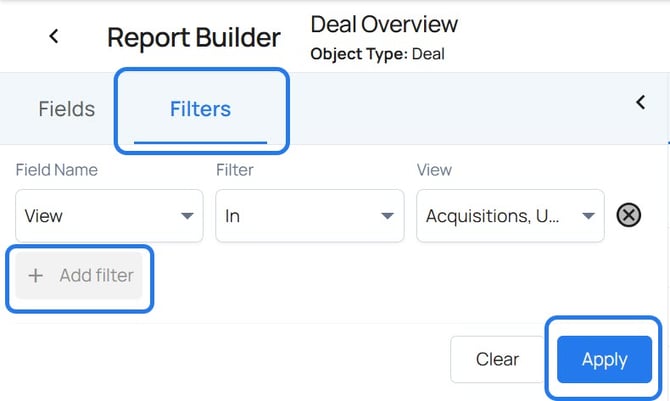
Next, select the "Filters" tab, then "Add Filter" to begin applying filter criteria to the data.
-
Select "Save" before navigating away from the page to save the report.
Duplicate a Report
-
Select a report from the list to view the report details.
-
Select the ⁝ icon in the upper right corner.
-
Select "Duplicate Report"

-
Follow the prompt to confirm the choice.
-
The new report will be titled [TITLE OF REPORT] - (Copy)
-
Select the title text and begin typing to rename the duplicate.
-
Select "Save" before navigating away from the page to save the new title and any changes made to the report.
Edit a Report
-
Select a report from the list to view the report details.
-
To edit the contents of the report, select the Fields or Filters tab from the report builder and make updates as desired.
-
Select "Save" before navigating away to save the changes to the report.
Delete a Report
-
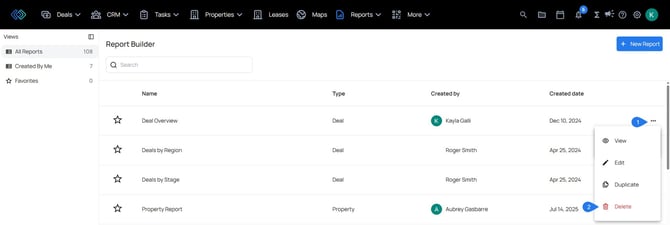
From the Reports list, select the ⁝ icon to access report actions. Then select "Delete".
-
Follow the prompt to confirm the choice.
Configure Schedule Send Options
- Navigate to a Report, then select the Configuration Tab.
- Select Automatically send report on schedule.
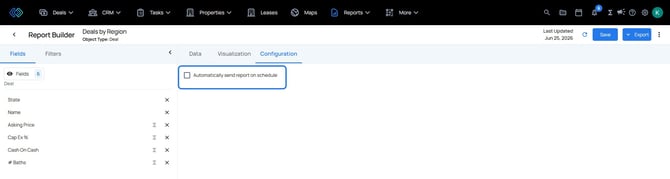
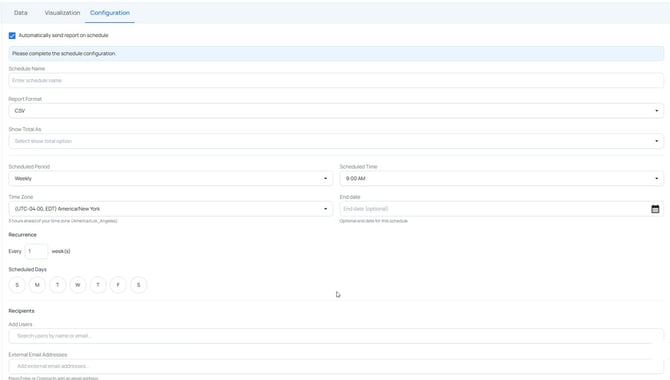
- Schedule Name is required.
- Select a Report Format (PDF / CSV)
- Set the schedule cadence
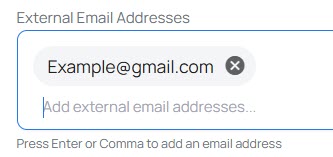
- Set the Recipients by selecting users from the dropdown and by adding any non-user recipient emails to the "External Emails" section. Select Enter or Comma to add the email address. It should appear as a bubble tile instead of just text.