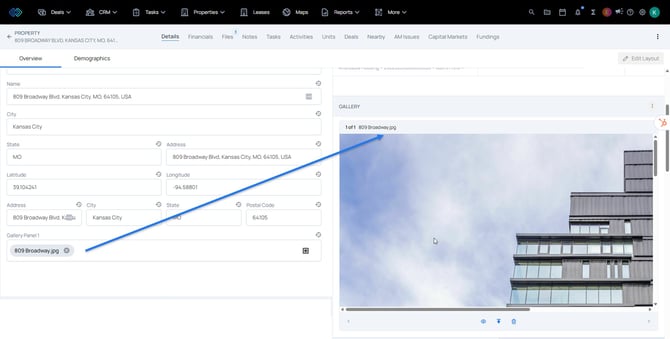
💡Things to Consider
A file field must already exist to select in the Gallery panel configuration step.
To create a new file field:
-
Go to Settings > Fields
-
Create a New Field. The field type selected should be "Related To" - "File"
-
Select "Any" in the Allowed Type dropdown. (The gallery panel will support displaying .pdf file types)
- Select the checkbox for "Multi Select" to allow users to enter multiple files into the field which will display in the gallery panel.
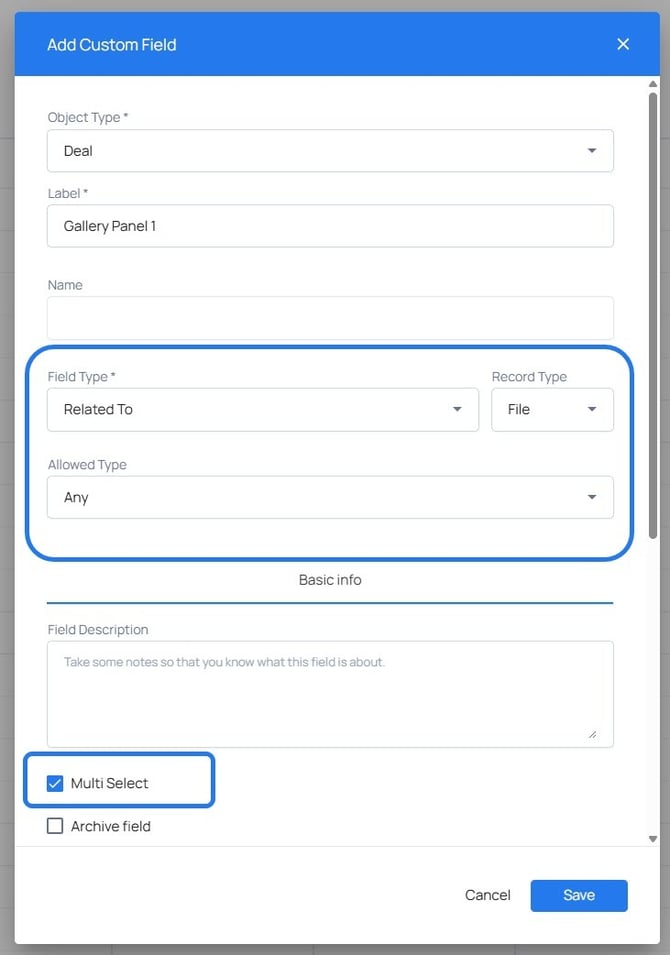
Only 1 field can be selected to configure the gallery panel so be sure to select the "Multi Select" checkbox to include multiple images/pdf files in the gallery panel.
The file field needs to be added to a layout for users to be able to add files into the gallery.
⚙️Steps
- Ensure the file field has been added to the Layout.
- Select Edit Layout.
- Select Add Panel
- Select Gallery from the list of Panels
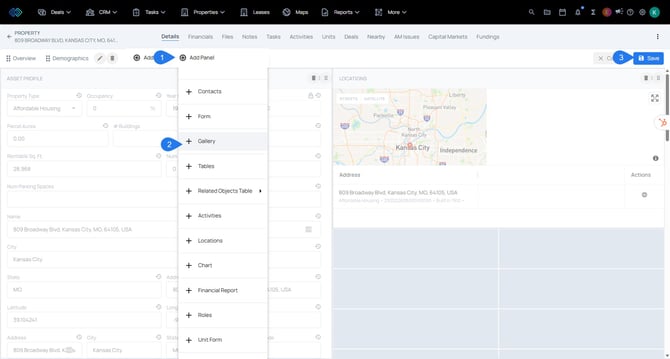
- Select Save
- Select the field dropdown in the Gallery panel
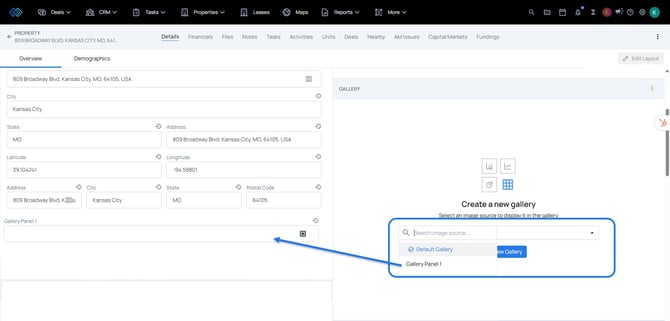
- Select Create New Gallery
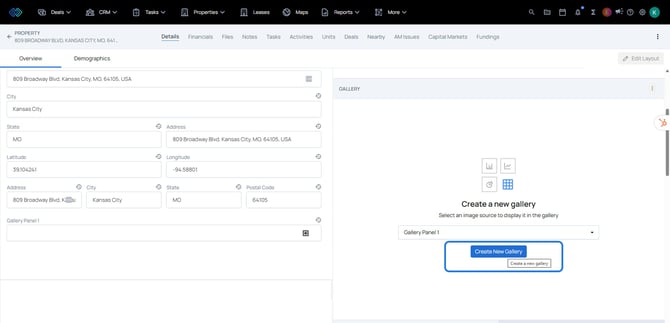
- Upload a photo to the file field by selecting the + icon within the field.
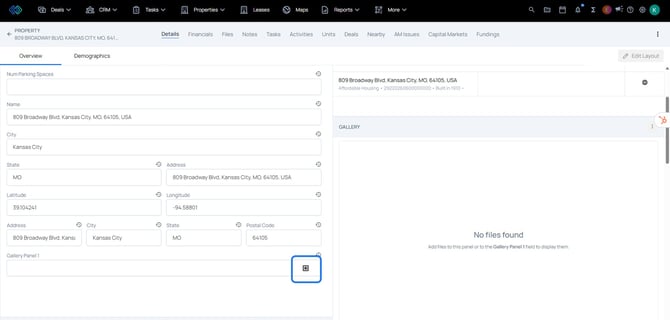
- Use the device file explorer to select the file and save the changes on the panel.
- The uploaded file will now appear in the gallery panel. A refresh may be required.