📑Learn To:
💡Things to Consider
The schedule exports also appear in the exports manager and soon will also appear in our notification center when the export is being process and when is completed.
Scheduling exports to send on a schedule is currently not available in Deals.
⚙️Steps
Export on Demand
- Select any object, then select a saved view.
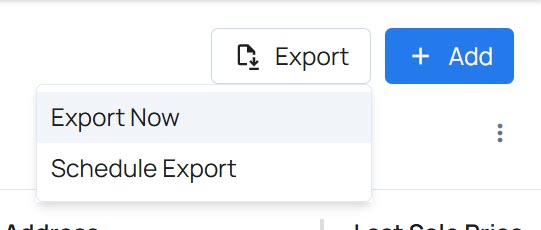
- Select Export
- Select Export Now
- Select a File Format - CSV or Excel.
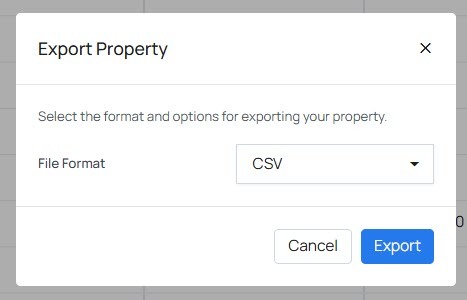
- Select Export.
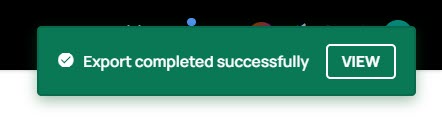
- The export will begin and a message will appear to indicate that the export is processing.
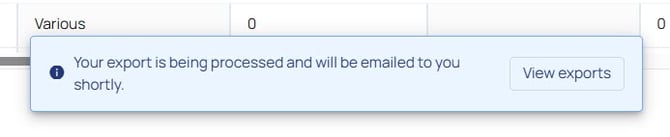
- Once processed, be sent via email and available for download in Settings > Exports.
Schedule Send an Export
- Select any object, then select a saved view.
- Select Export
- Select Schedule Send
- Enter a name for the scheduled report. The schedule name is to distinguish scheduled reports from one another. This name will not appear on the email or the export.
- Enter a Report Format - CSV or Excel. PDF is currently not supported.
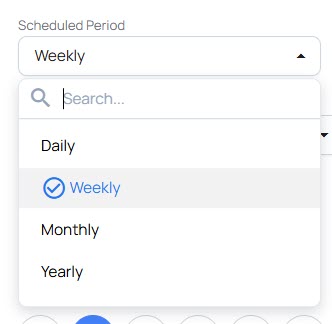
- Select a Schedule Period
- Select a Scheduled Time to set the time of day the report should begin to process.
- Select the Time Zone
- Select and End Date (optional)
- Select the Recurrence Cadence
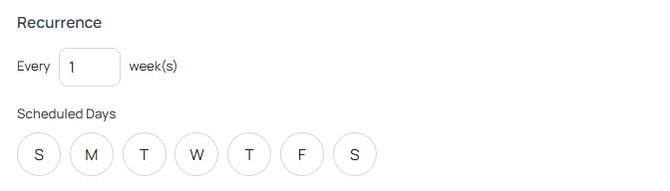
- Select the Scheduled Days
- Select Recipients:
Users in the Workspace - They will only receive reports if they are active users in the workspace. Deactivated Users will not receive reports.
External Email Addresses - These emails will receive the export regardless of workspace status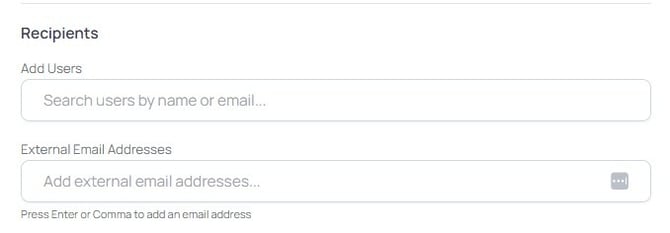
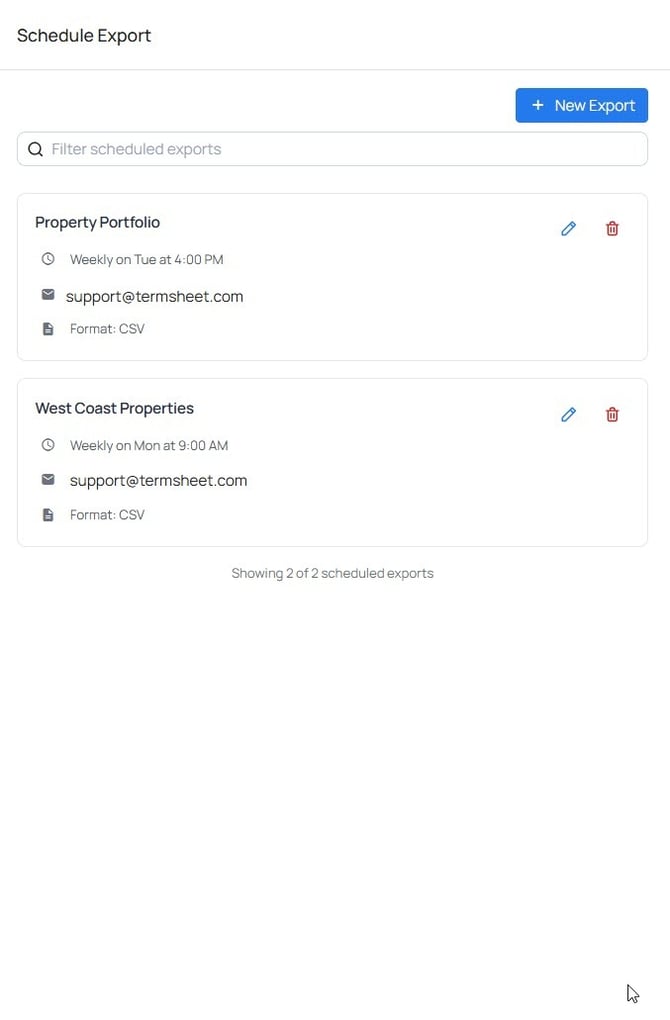
- It's possible to schedule multiple scheduled exports for a single view. To initiate another schedule, select repeat the steps above.
- To view a list of scheduled exports, select Export > Schedule Send. Then select Cancel on the schedule configuration form.