💡Things to Consider
Drafts are user specific. Each user can have one draft task list per task list. It is not possible to see other user's draft task lists. The LIVE task list will always show the most recently published draft task list.
Custom Field Values and File Attachments are not currently supported by draft tasks. Any changes made to custom field values in draft tasks will not publish to the LIVE task list.
Changes made to the task list columns / filters will not publish from Draft to Live.
⚙️Steps
- From a task list, select the Live icon, then select Draft.
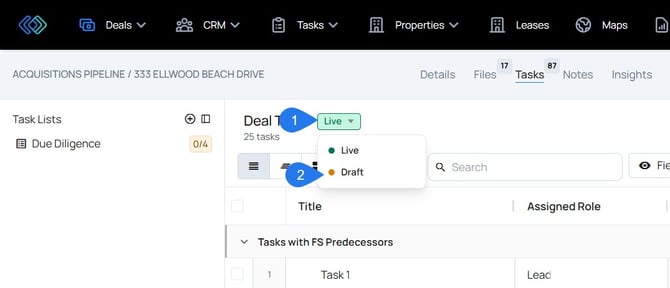
- A draft will be created.
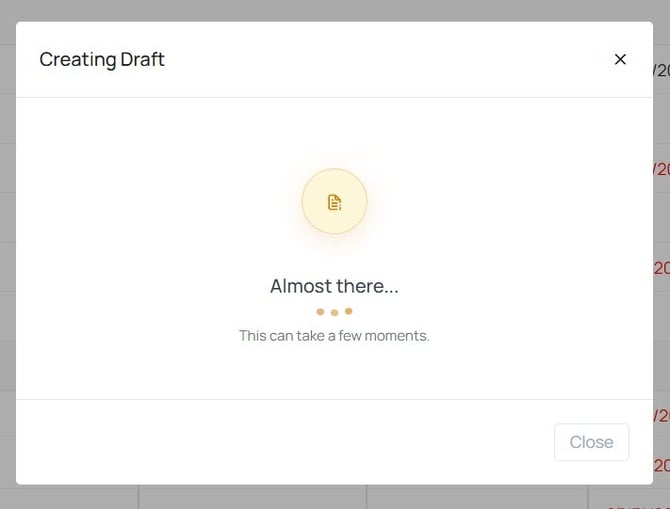
- Once in draft mode, changes can be made to the task list.
- To commit changes to the Live Task List, select Publish Draft. A window to review changes made to tasks will appear. From the preview window, select publish to promote changes to the live version.
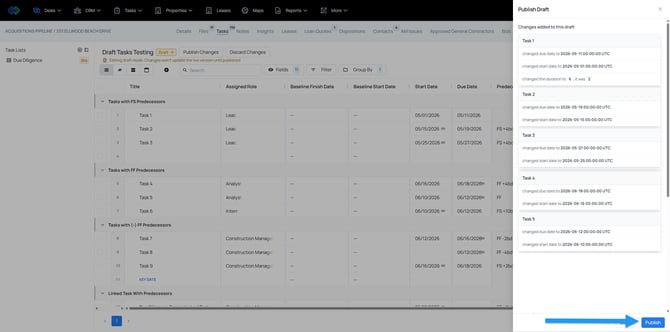
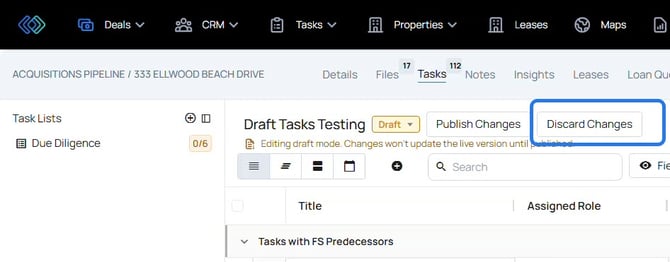
- To discard draft changes and start over with a new draft, select Discard Draft
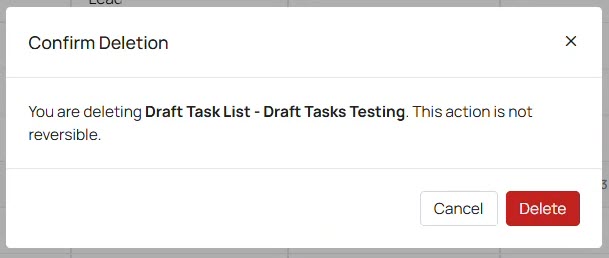
- A confirmation message will appear. Once a draft has been discarded, the changes cannot be restored.
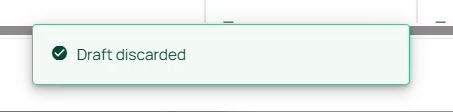
- A success message will appear.