💡Things to Consider
Creating additional Teams / Team hierarchy is not required. Workspaces can exist with only the root team.
Understanding Teams
Root Team
Every workspace by default has a "root team" which is labeled with the workspace account name(ie: GTRE Team)
The Root Team will have access to all records within the workspace. Teams nested under the root team will have access to a subset of the total records in the workspace.
Additional teams
Additional teams can be created under the root team, if needed, to restrict record access based on team affiliation.
Think of the Team access as nested circles where the team has access to any records within their circle by default, but does not have access to anything outside of their circle.
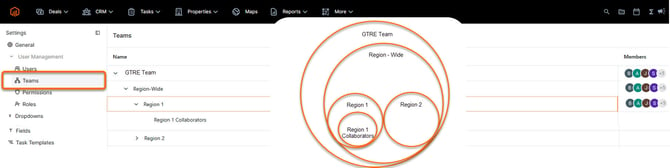
In the example above, Region-Wide Team users have access to records within Region 1, Region 1 Collaborators, and Region 2, but will not have access to all of the records that the GTRE Team (root folder) has access to.
⚙️Steps
Add a Team
-
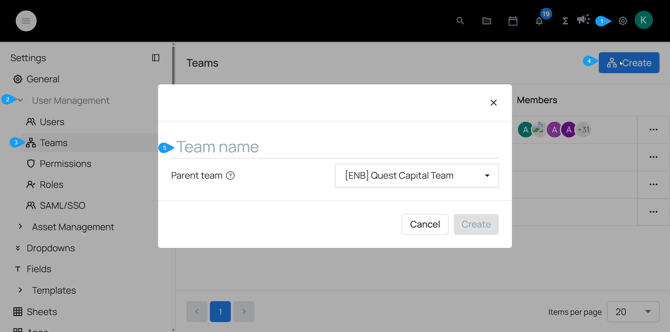
Navigate to Settings > User Management > Teams
- Select Create
- Enter a Team Name
- Select a parent team to nest this new team under.
- Select Create
Edit a Team
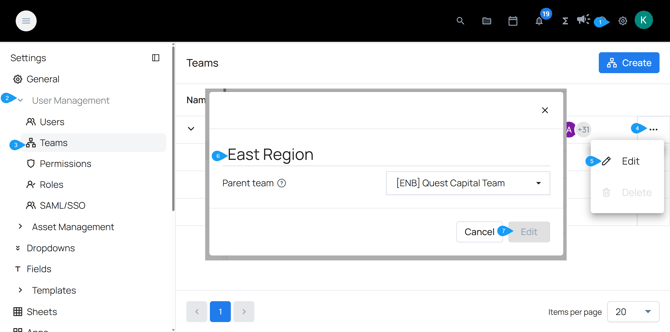
- Navigate to Settings > User Management > Teams
- Select the three dots next to an existing team.
- Select Edit
- Select the Team title to rename or select the parent team dropdown to change how the team is nested in the hierarchy.
- Select Edit to save changes.