💡Things to Consider
TermSheet Excel Add In and TermSheet Outlook Add In are not currently supported by Multiple SSO.
⚙️Steps
- Head to Settings > User Management > SAML/SSO
- Click the "+ Add Provider" button in the top right corner
- Enter your Provider Name, Identity Provider ID, Login URL, and Base64 Public Certificate
- Leave the SP Entity ID and "Active" check box empty for now. An SP Entity ID will be generated after saving.
- Select a Default Role and Default Team for new users signing in via SSO
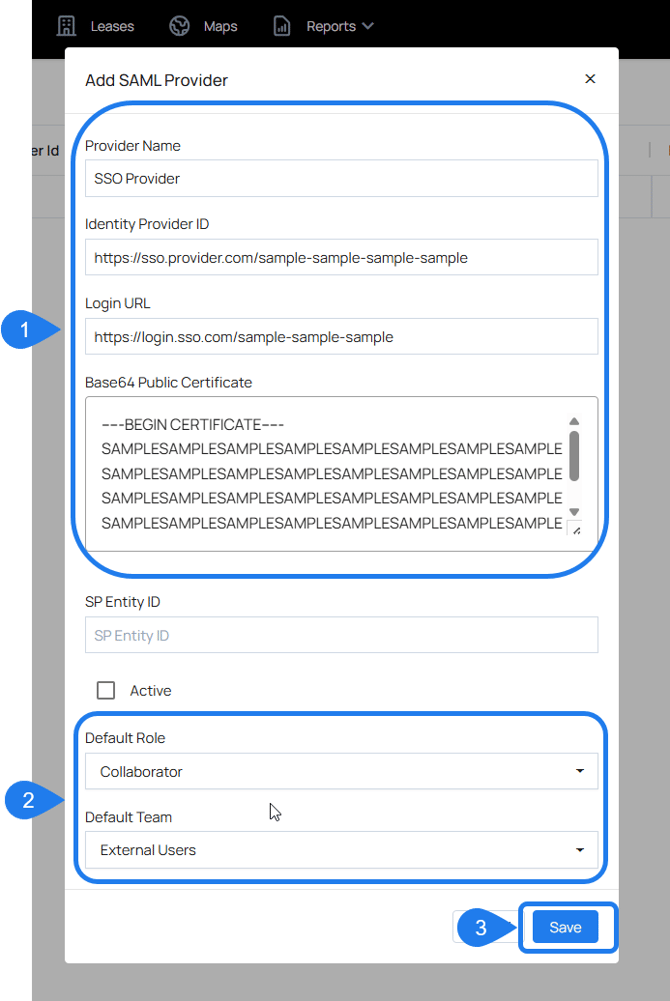
- Click Save
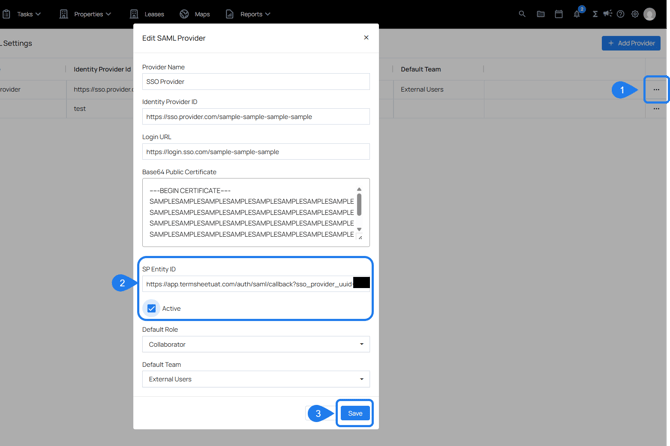
- Click the three dots ( ⋯ ) on the right of the SSO configuration you just made and copy the generated SP Entity ID to add to your SSO provider's configuration
- Check the "Active" box to turn SSO on for your workspace and click Save
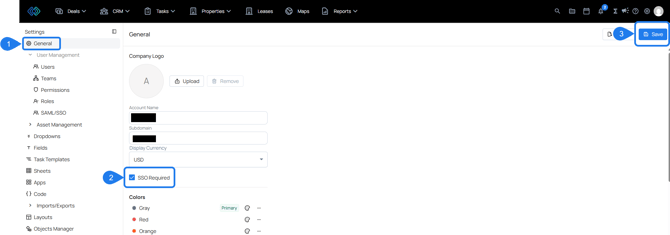
To disable login via username/password, select the "Required" checkbox in Settings > General. This will force users to login via SSO only.