💡Things to Consider
Files uploaded through a custom "Related-To File" field do not support folder destination selection — that option is only available when uploading through a task's default Upload Attachment button.
To enable this feature for your workspace, contact your customer success manager and request the task_upload_destination_folder feature.
⚙️Steps
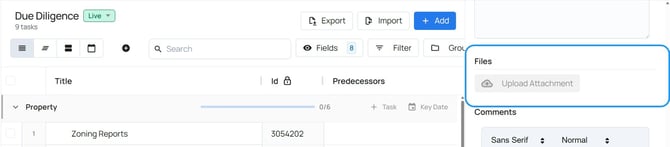
- Navigate to a task and find the default file upload option.
- Select "Upload Attachment"
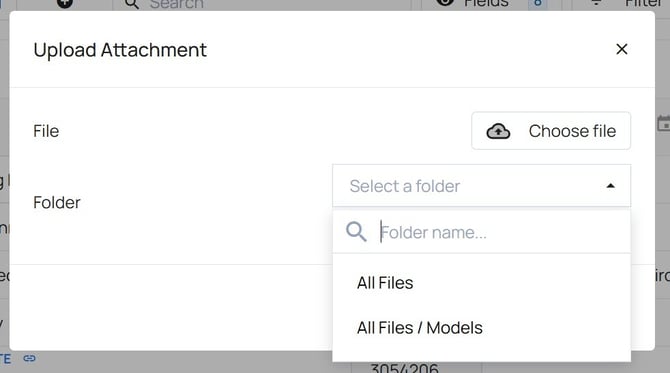
- Select an existing folder from the dropdown or create a new folder for the file to land.
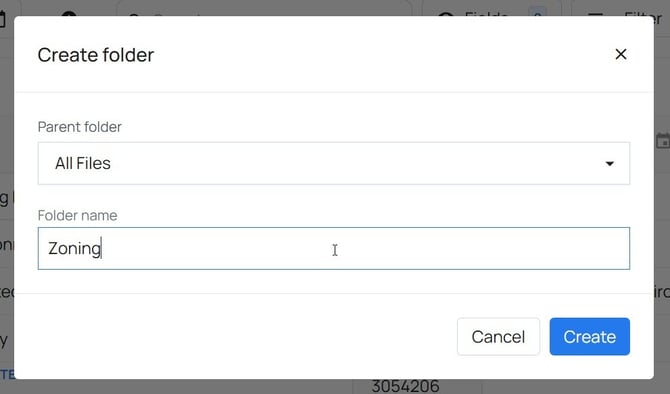
- If the folder destination doesn't exist, select +New Folder.
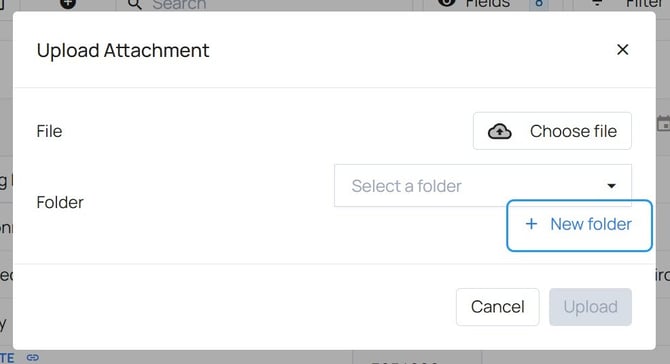
- Select the parent folder and give the folder destination a name.
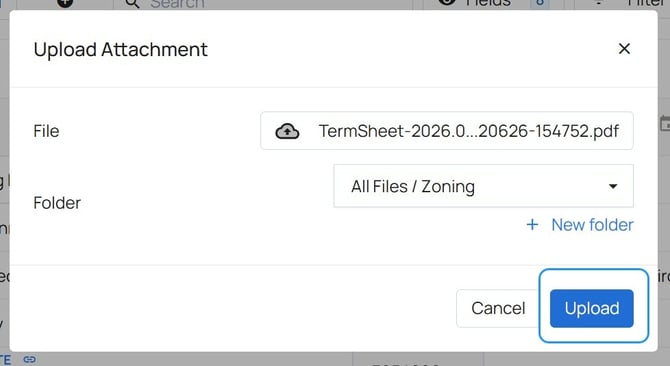
- Select "Choose File" to open the file browser on the device. Select the file to upload.
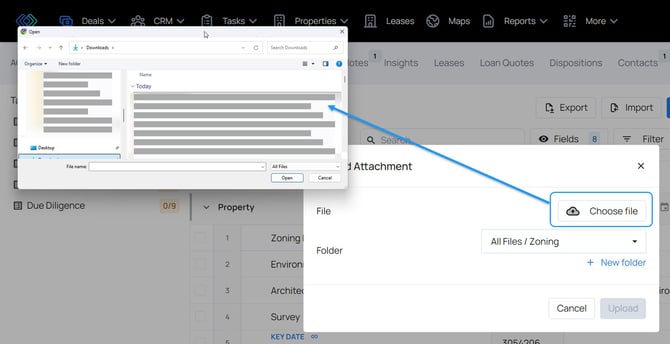
- Select Upload