
Access the conditional styling options by navigating to any object field. From there, rules can be defined based on the field's value. For example, a rule can be set that says "if this field's value is greater than X, then change the cell color to red" or "if this field's value is equal to Y, then make the text bold."
💡 Things to Consider
Currently, this feature is available for Deals, Properties, Tasks, and Custom Objects. It can be configured for object fields to enhance data visibility and workflow efficiency.
What kind of styling can be applied with Conditional Styling?
- Changing the color of the background of the field.
- Making the text bold.
Related-To Fields currently do not support Conditional Styling
⚙️Steps
- Navigate to a custom field within Deal, Property or Custom Object field settings.
- Select the ⁝ icon to the right of the field, then select "Edit Field"
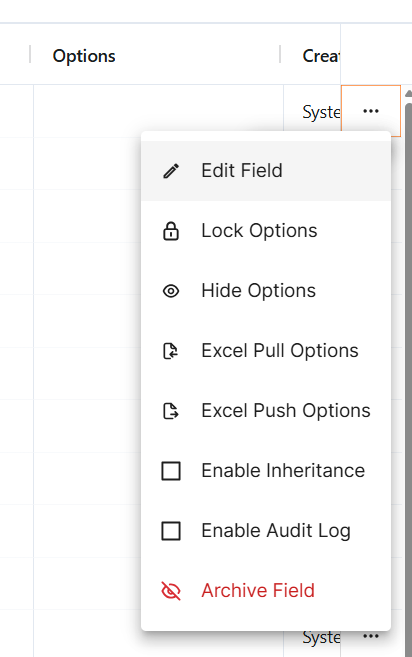
- Scroll to the bottom to find the Conditional Styling section.
- Set the conditions using the dropdowns. This is where the desired rules and visual changes can be defined.
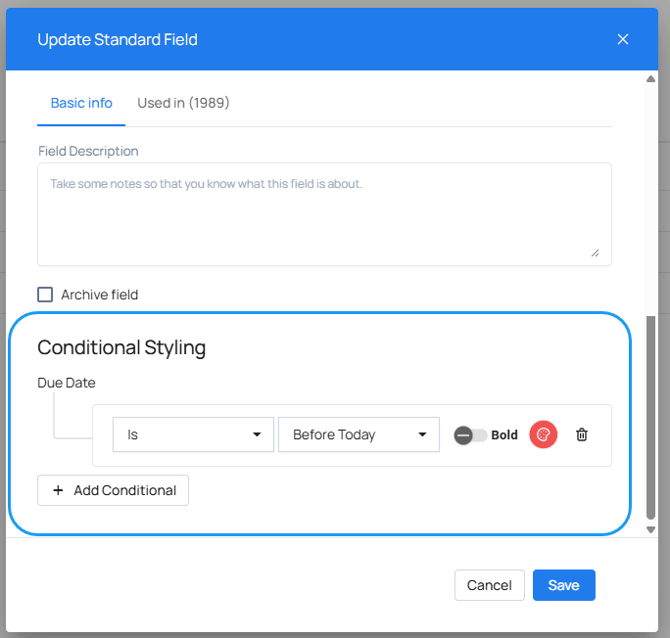
- Multiple conditions can be configured as desired. If there are conflicting conditions the top-most condition will be used.