
📑Learn To:
💡Things to Consider:
Non-Admin users need the Manage Audit permission to access the Audit Log.
Admin users always have access to the Audit Log.
Saved views are user-specific. They are not shared across users.
Historical logs are stored indefinitely
⚙️Steps
View and search the Audit Log
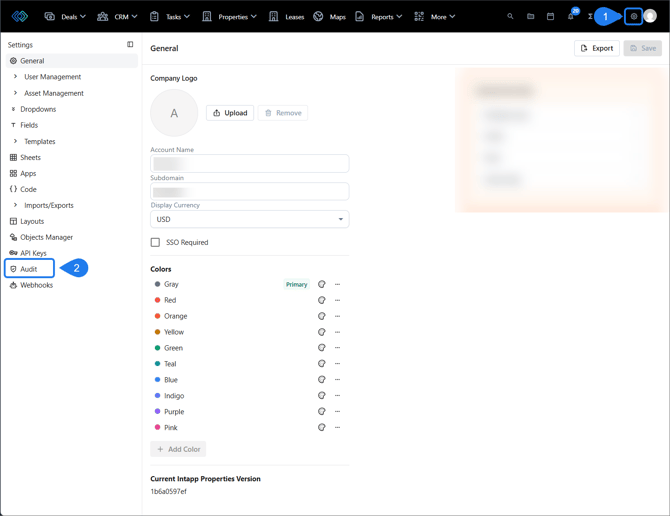
- Navigate to Settings > Audit. The Audit Log opens to the All Logs view by default
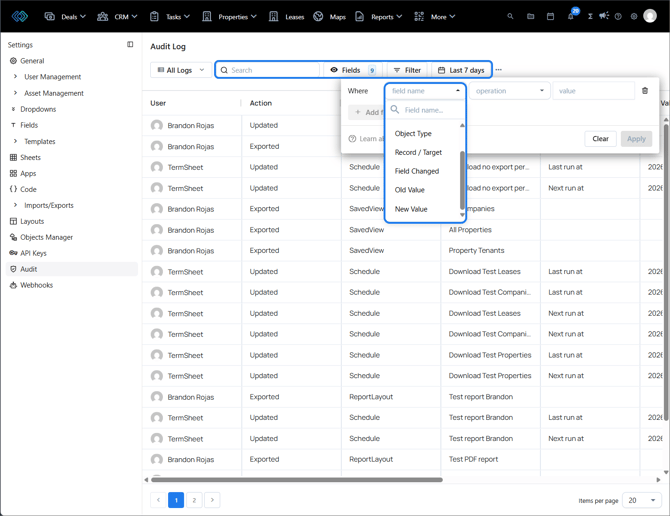
- Use the search bar to search the currently displayed logs by keyword; or use Filters to isolate events by Action, Object Type, Record, Field Changed, User, or Value.
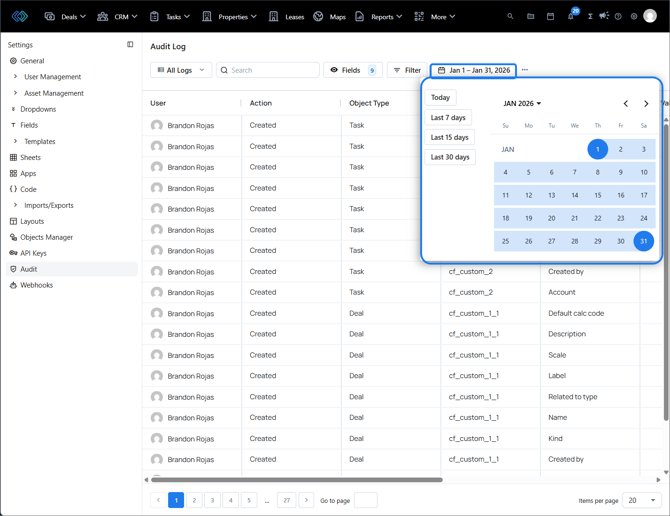
- Use the date range selector to choose the timeframe of logs you want to display. Select a date or range from the calendar to display logs from more than 30 days ago
Save and manage Audit Log views
After navigating to Settings > Audit, the Audit Log opens to the All Logs view by default. The view can be changed using the view selector next to the search bar
Click on the three dot icon beside the date range button to display the view options menu:
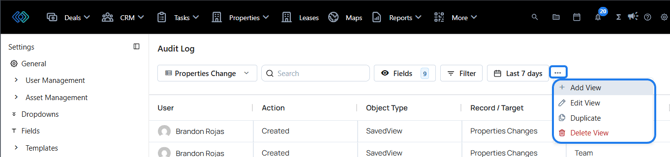
Add View
Creates a new view. Enter a name for the view, then click Create.The new view will automatically be selected once created.
Edit View
Renames the currently selected view. Edit the view's name, then click Save.
Duplicate
The view is automatically cloned with the suffix (Copy) added to the select view's name
Delete View
Deletes the currently selected view. This action is not reversible.