
📑 Learn to:
💡 Things to Consider
Folder templates are currently available for Deals only.
Templates are applied only when: (1) a new deal is created, or (2) an existing deal's layout is changed and the deal has no existing files.
Deals that already have files attached will not be affected by template changes.
If you need to apply a template to a deal that already has files, move the files out, delete them from the deal, apply the template, then re-upload the files to the appropriate folders.
Existing deals are not retroactively updated. Template changes only affect new deals (or layout changes on file-free deals) going forward.
Save your template before assigning it to a layout — it must be saved first for the assignment to take effect.
⚙️ Steps
Create a Folder Template
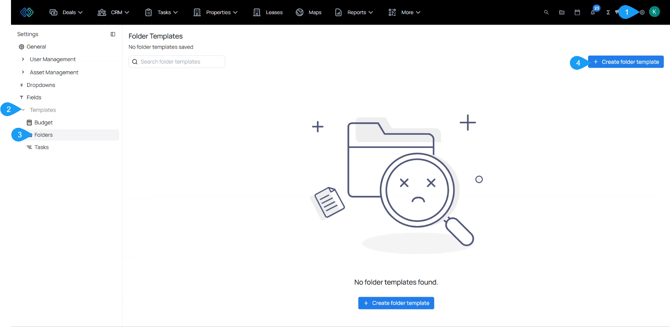
- Navigate to Settings > Templates > Folders. Then select "Create Template"
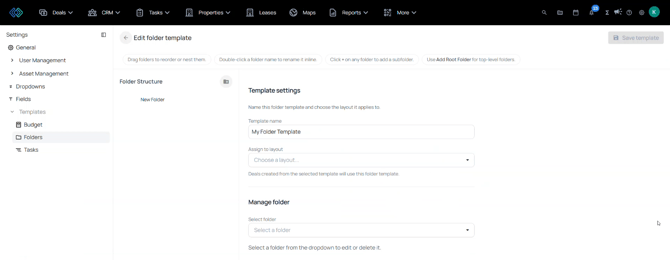
- Add folders and subfolders to build your desired structure. Rename folders and nest them as needed.
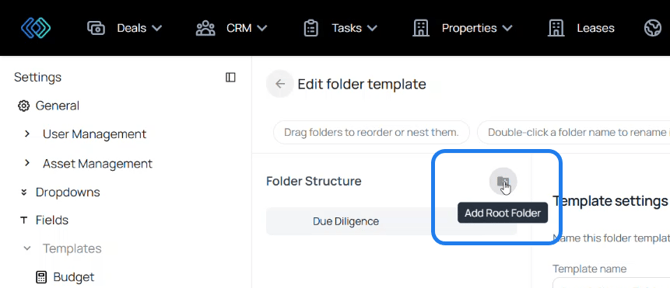
- Select to add root folders
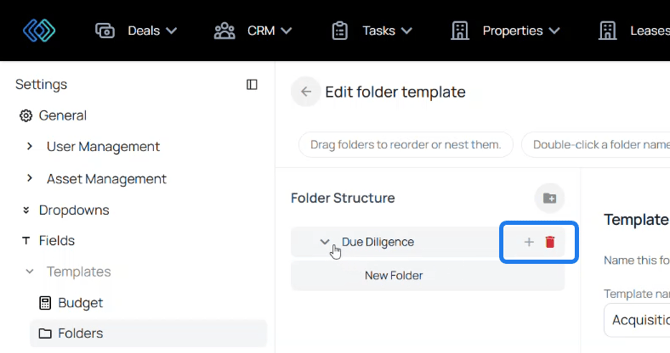
- Select to add subfolders or delete folders
- Select a Layout to apply the folder structure. Then select Save Template.
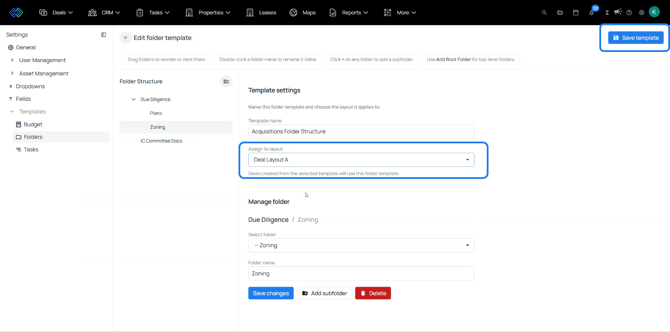
When a deal is created using this layout — or when an existing deal (with no files) is switched to this layout — the folder structure will be applied automatically.