
In every account, there is a default list of "Permission Groups" that have individual permissions turned on or off to grant or restrict access to actions and spaces of the workspace.
New custom Permission Groupscan be added and/or existing custom Permission Groups can be updated to provide the levels of access that make sense for each organizations unique needs.
💡 Things to Consider
To apply a Permission Group to a user, select Users from the Settings menu sidebar
⚙️ Steps
Add a Custom Permission Group
-
Navigate to Settings by selecting the gear icon in the top right next to the user profile icon.
-
Select User Management, the select Permissions from the sidebar.
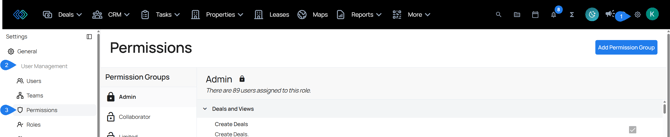
-
Select "Add Permission Group".
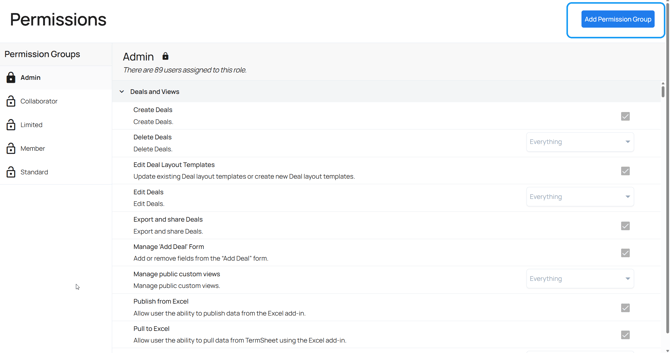
-
Enter a title for the Permission Group. Be descriptive so it is clear what this role has access to do.
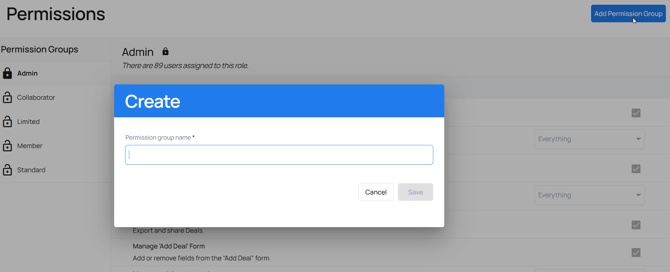
-
Select Save. The new Permission Group will display in the Permission Groups list with an unlocked icon to show that it is modifiable.
-
Next, with the new Permission Group selected, review the list of Permissions and use the checkboxes to enable permissions as needed for the new Permission Group. Select save to apply the changes.