The account level Aggregated Task list consolidates all of the object level tasks into one space. The tasks can be grouped and filtered, then saved as a view to reference later.
📑 Learn To:
💡 Things to Consider
View Names cannot be edited and Views cannot be reordered, or deleted.
⚙️ Steps
Add a New Aggregated Task View
-
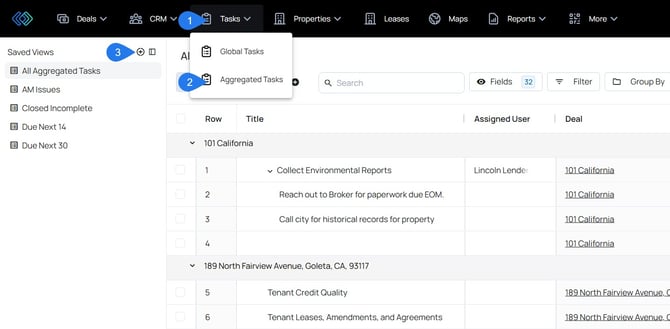
Select Tasks from the workspace header, then select Aggregated from the dropdown.
-
Select the + icon in the Saved Views sidebar.
-
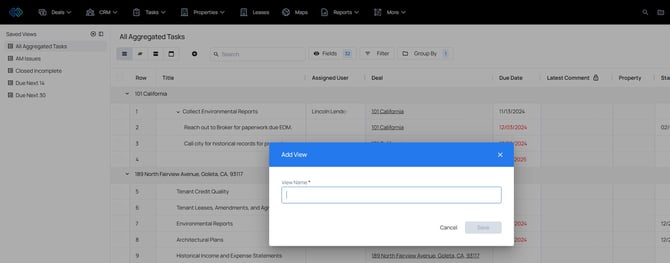
Enter a name for the view.
-
Select "Save" to create the view.
Manage Visible Columns for Aggregated Task Lists
-
Select a Saved View from the sidebar.
-
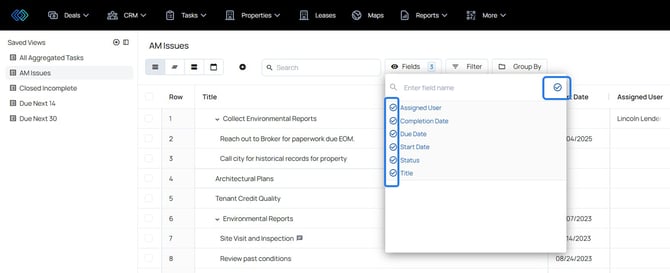
Select the Fields button in the task list header, next to the search bar.
-
Use the dropdown to browse Task fields or begin typing to search for a field.
-
Select the fields to add them as columns.
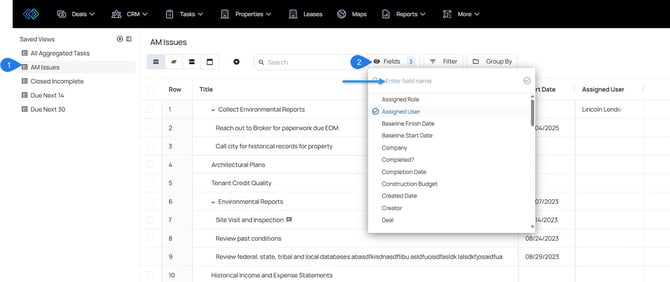
- Select the checkbox in the upper right corner of the fields dropdown to only the selected fields. This is recommended when removing fields since it is the simplest way to see all field columns together.
-
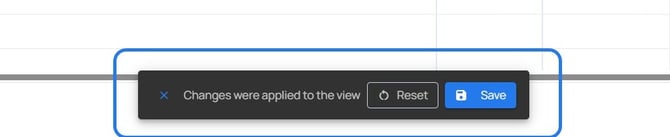
Changes take effect immediately once you click out of the fields dropdown, but will be lost if you navigate away from the page. This is a great way to make one-time adjustments to view data.
-
To save the changes, select save on the message that appears at the bottom of the screen.
Filter Aggregated Task Lists
-
Select a Saved View from the sidebar.
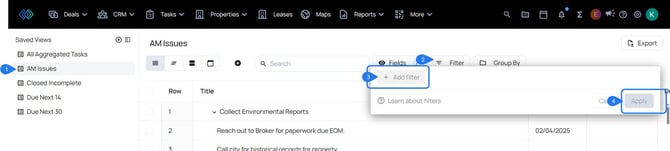
- Select the Filter button in the task header.
- Select Add Filter. Select a field from the first dropdown, then select an operator and a value.
-
Select Apply to filter the view. This filter will be applied, but will be lost if you navigate away from the page. This is a great way to make one-time adjustments to view data.
-
To save the changes, select save on the message that appears at the bottom of the screen.
Filter by Parent Object to filter to tasks from any object by any standard or custom object in the workspace. (Deals, Properties, Companies, Contacts, Custom Objects, etc).
Filter by Parent Record to filter to tasks from the individual records within the standard or custom objects in the workspace. 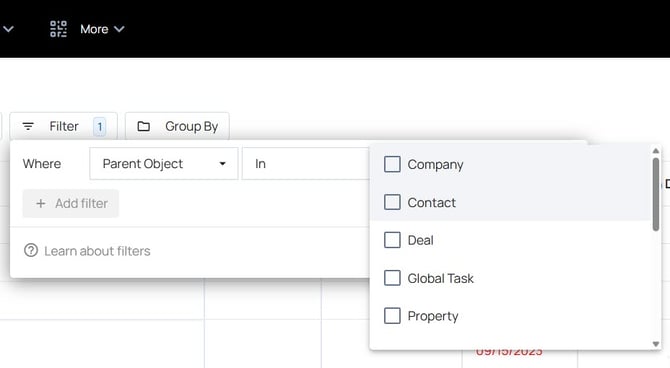
Group Aggregated Task Lists
-
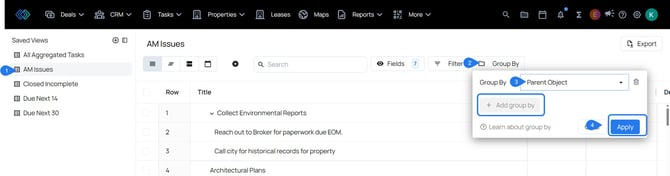
Select a Saved View from the sidebar.
-
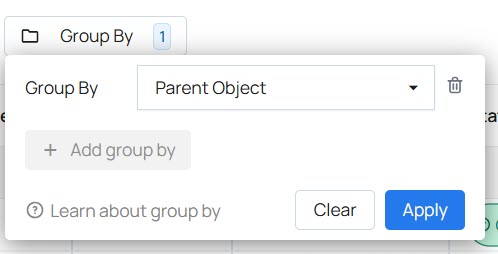
Select the Group By button
-
Select any field to group the tasks by that field.
-
Select Apply to see the tasks grouped by the selection. This grouping will be applied, but will be lost if you navigate away from the page. This is a great way to make one-time adjustments to view data.
-
To save the changes, select save on the message that appears at the bottom of the screen.
Group by Parent Object to group tasks from any object by any standard or custom object in the workspace. (Deals, Properties, Companies, Contacts, Custom Objects, etc).
Grouping by Parent Record will group tasks by the individual records within the standard or custom objects in the workspace.